
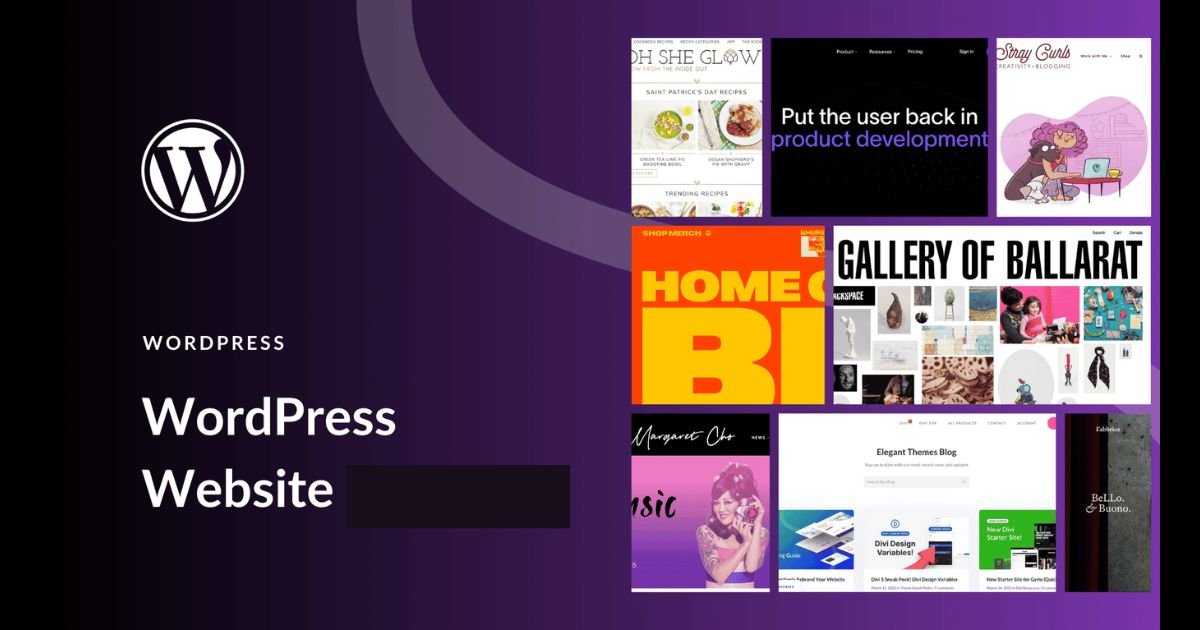
WordPress is one of the most popular website-building platforms in the world, powering millions of websites from blogs and business sites to eCommerce stores. If you are a beginner, WordPress offers a flexible and user-friendly way to design a professional website without advanced coding skills.
In this guide, you’ll learn how to design a website in WordPress step by step, from choosing a domain name to launching your site successfully.
What Is WordPress?
WordPress is a content management system (CMS) that allows users to create, customize, and manage websites easily.
Two Main Types:
WordPress.org
Self-hosted, highly customizable, best for full control
WordPress.com
Hosted platform with limited flexibility
For business websites, most users choose WordPress.org for better customization and scalability.
Why Choose WordPress for Website Design?
WordPress is popular because it offers:
- Beginner-friendly setup
- Thousands of themes
- Custom plugins
- SEO-friendly structure
- Mobile-responsive options
- eCommerce integration
- Full design flexibility
Whether you need a business website, portfolio, blog, or online store, WordPress can handle it.
Step 1: Choose a Domain Name and Hosting
Domain Name
Your domain is your website address (example: yourbusiness.com).
Tips for Choosing a Good Domain:
- Keep it short
- Make it easy to remember
- Use your brand name
- Avoid complex spelling
Web Hosting
Hosting stores your website files online.
Good Hosting Features:
- Fast speed
- Security
- SSL certificate
- WordPress installation support
- Customer support
Many hosting providers offer one-click WordPress installation.
Step 2: Install WordPress
Most hosting companies make installation simple through a one-click setup.
Basic Installation Process:
- Log in to hosting account
- Find WordPress installer
- Select domain
- Set username and password
- Complete installation
After setup, you can access your dashboard at:
yourdomain.com/wp-admin
Step 3: Choose the Right WordPress Theme
A theme controls your website’s appearance and layout.
Good Theme Qualities:
- Mobile responsive
- Fast loading
- SEO-friendly
- Customizable
- Professional design
Popular Theme Categories:
- Business
- Blog
- Portfolio
- eCommerce
- Agency
To Install a Theme:
Dashboard → Appearance → Themes → Add New
Choose, install, and activate your preferred design.
Step 4: Customize Your Website Design
Use the WordPress Customizer or page builder tools.
Customize Key Elements:
- Logo
- Colors
- Fonts
- Header
- Footer
- Homepage layout
- Navigation menus
Important Pages to Design:
- Home
- About Us
- Services
- Blog
- Contact Us
A clean structure improves user experience.
Step 5: Install Essential Plugins
Plugins add features to your website.
Important Beginner Plugins:
SEO Plugin
Helps optimize rankings
Security Plugin
Protects your website
Backup Plugin
Prevents data loss
Contact Form Plugin
Allows visitors to contact you
Speed Optimization Plugin
Improves loading speed
To Install:
Dashboard → Plugins → Add New
Step 6: Design Pages with a Page Builder
Many beginners use drag-and-drop builders for easier design.
Benefits:
- No coding required
- Visual editing
- Custom layouts
- Faster design process
Common Design Features:
- Hero banners
- Service sections
- Testimonials
- Contact forms
- Call-to-action buttons
Step 7: Create SEO-Friendly Content
Your website design should support SEO.
SEO Basics:
- Use keywords naturally
- Add headings (H1, H2, H3)
- Optimize images
- Create meta titles
- Write clear page descriptions
- Use internal links
Good design + SEO = better visibility.
Step 8: Optimize for Mobile Devices
A large portion of visitors use smartphones.
Mobile Optimization Tips:
- Responsive theme
- Fast loading pages
- Easy navigation
- Readable text
- Clickable buttons
Google also prioritizes mobile-friendly websites.
Step 9: Improve Website Speed
Fast websites improve user experience and SEO.
Speed Optimization:
- Compress images
- Use caching
- Minimize plugins
- Choose quality hosting
- Optimize code
Slow websites can lose visitors quickly.
Step 10: Add Security Features
Website security is essential.
Security Basics:
- SSL certificate
- Strong passwords
- Security plugins
- Regular updates
- Spam protection
A secure website builds trust.
Step 11: Test Before Launch
Before publishing:
Check:
- Mobile responsiveness
- Broken links
- Contact forms
- Loading speed
- SEO basics
- Grammar and content quality
Testing prevents user issues.
Step 12: Launch Your Website
Once everything is ready:
Go Live!
Promote your site through:
- SEO
- Social media
- Email marketing
- Google Ads
Common WordPress Design Mistakes to Avoid
Too Many Plugins
Can slow your site
Poor Navigation
Confuses users
Ignoring SEO
Reduces traffic potential
Weak Security
Creates risk
Unoptimized Images
Slows performance
Best Tips for Beginners
Keep Design Simple
Clean websites perform better
Focus on User Experience
Easy navigation matters
Prioritize Speed
Fast websites convert better
Learn Basic SEO
Helps your site grow
Update Regularly
Keep WordPress secure and functional
Final Thoughts
Designing a website in WordPress is one of the best ways for beginners to create a professional online presence without advanced technical skills.





Add comment